From a file to a checked Story and a deck, in five steps.
Nothing runs until you approve the Brief. Every number is computed from your rows by code, every finding is checked before it is written, and every figure opens to its rows.
The walkthrough's captions
- From a file to an analysis you can stand behind, in minutes. A walkthrough · synthetic sample data throughout
- 1 · Upload: Upload a CSV or Excel file. Evident reads every column.
- 1 · Set up: What each column means: metrics, breakdowns, dates, how each adds up. Evident proposes it; you confirm and publish.
- 1 · Set up: The health check comes first: repeated rows, blanks, values that fail their type, unusual values.
- 2 · Ask: Ask a business question in plain words.
- 3 · The Brief: Evident reads the request into a Brief, in about 30 seconds.
- 3 · The Brief: Exactly what will be calculated, each with a plain “Computed as” line. Nothing runs until you approve.
- 4 · Run: Approve, and the Plan sets out the questions. Confirm, and the run starts.
- 4 · Run: Code computes every number from your rows, checks every finding, then writes the Story. Across 22 runs on a development machine, the median analysis took 5.8 minutes.
- 5 · The Story: The answer and its key figures first. Every figure has Check this.
- 5 · The Story: Then a chapter for each part of the request, with its charts. Every sentence was checked before it reached the page.
- 6 · Check: Press Check this on any figure, here the 4.8%.
- 6 · Check: What you're checking, and why it's true: the finding behind the figure.
- 6 · Check: Do they add up? Every total recomputed from your rows, each step matched to the run.
- 6 · Check: Then the rows themselves, to filter, pivot or download.
- 7 · Context: The wider picture, already computed and checked: more than the Story had room for.
- 8 · Present: The Story as a deck, one point per slide. Pick one of eight themes.
- 8 · Present: Leave slides out, then create the PowerPoint: editable charts, or pictures exactly as on the page.
- Evident by PhasePoint Analytics: Ask a business question. Get an analysis you can stand behind. Book a demo · phasepointanalytics.com
Upload your data
A CSV or Excel file. Evident profiles every column and checks the data's health. Then it proposes what each column means, and you confirm.
One dataset: what it holds, its metrics and breakdowns, the published version analyses read, and its duplicate check.
AI sees: nothing at upload. At setup, column names, types and counts, plus a sample of up to 10 rows if you allow it.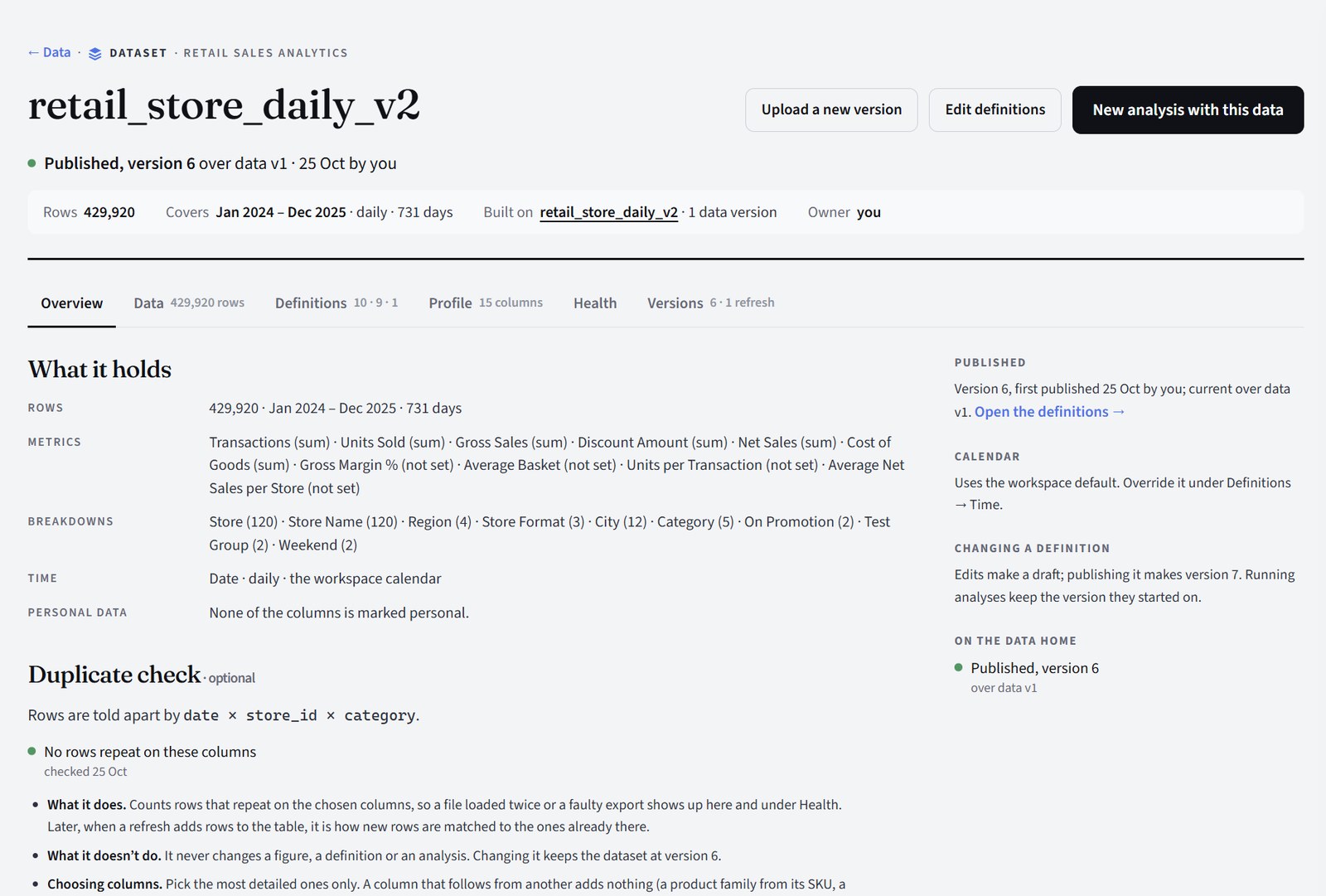
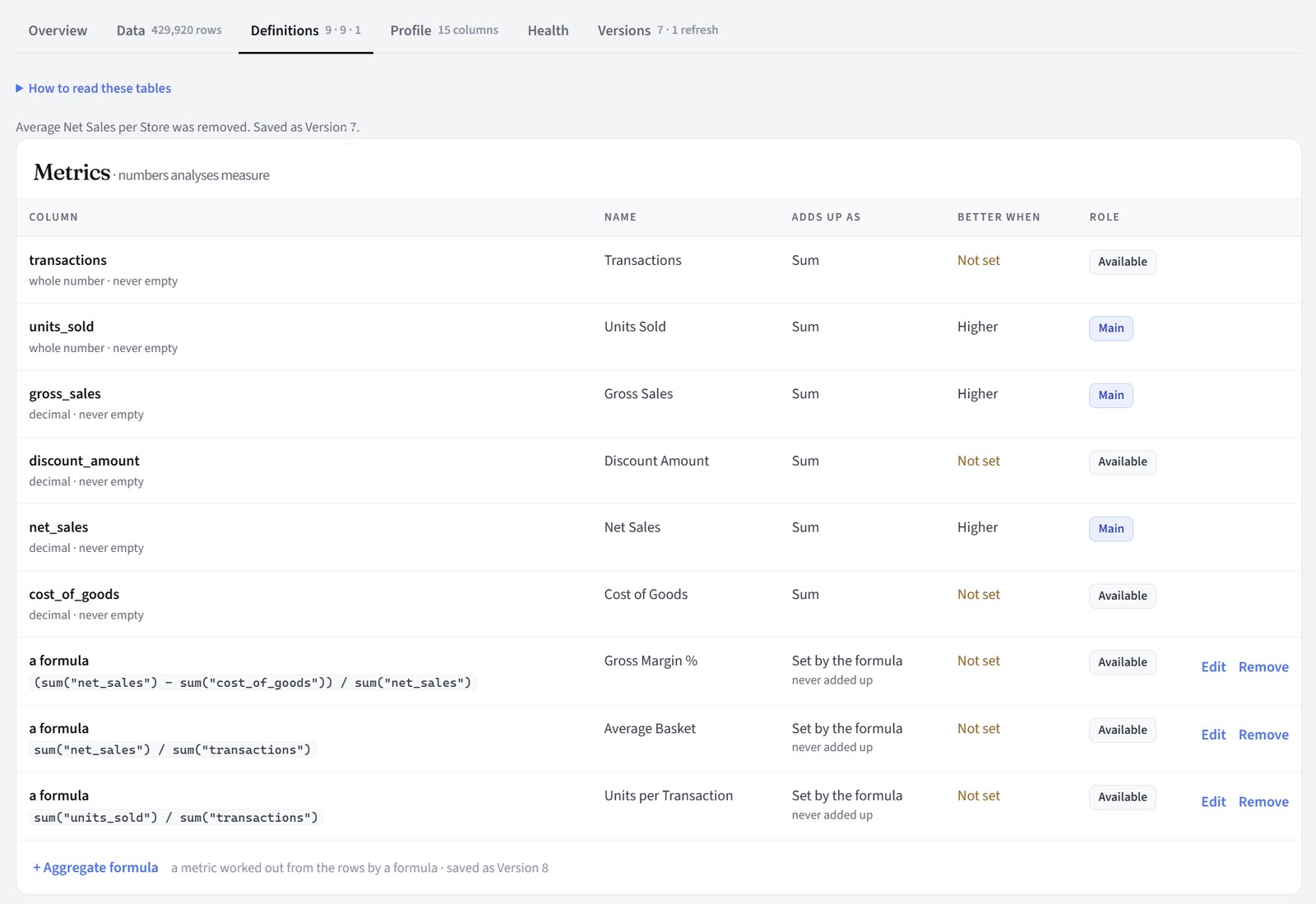
What each column is (a metric, a breakdown, a date), its name, how it adds up and which way is better. Evident proposes them; you review and change them before anything is published. You can add metrics of your own as formulas, checked on the data as you type.
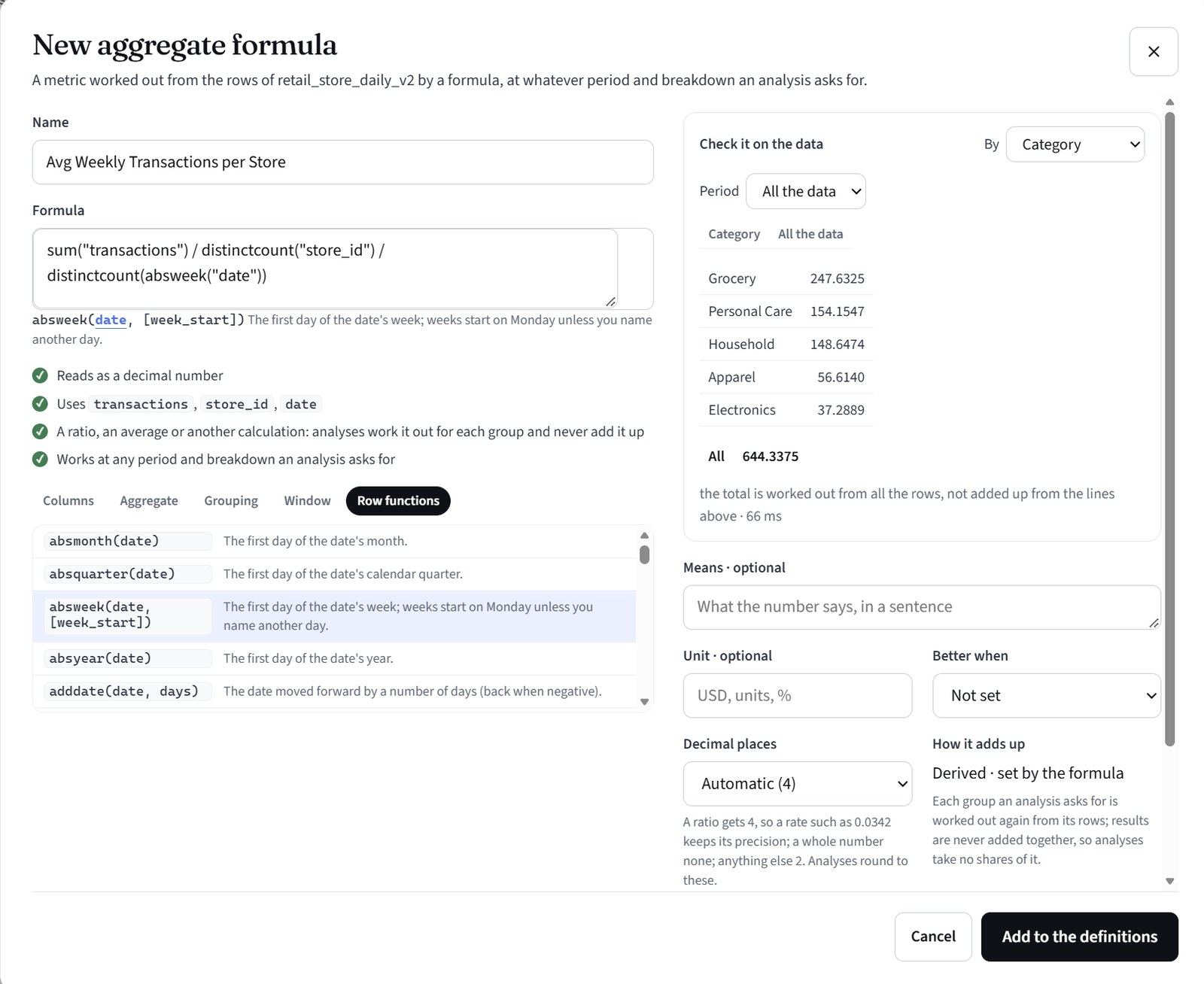
The quality check: repeated rows, blanks, values that don't read as their type, days with no data, and values far outside the usual range. Nothing is changed; each is listed for you to judge.
AI sees: nothing. Health, formulas and the rows are code only.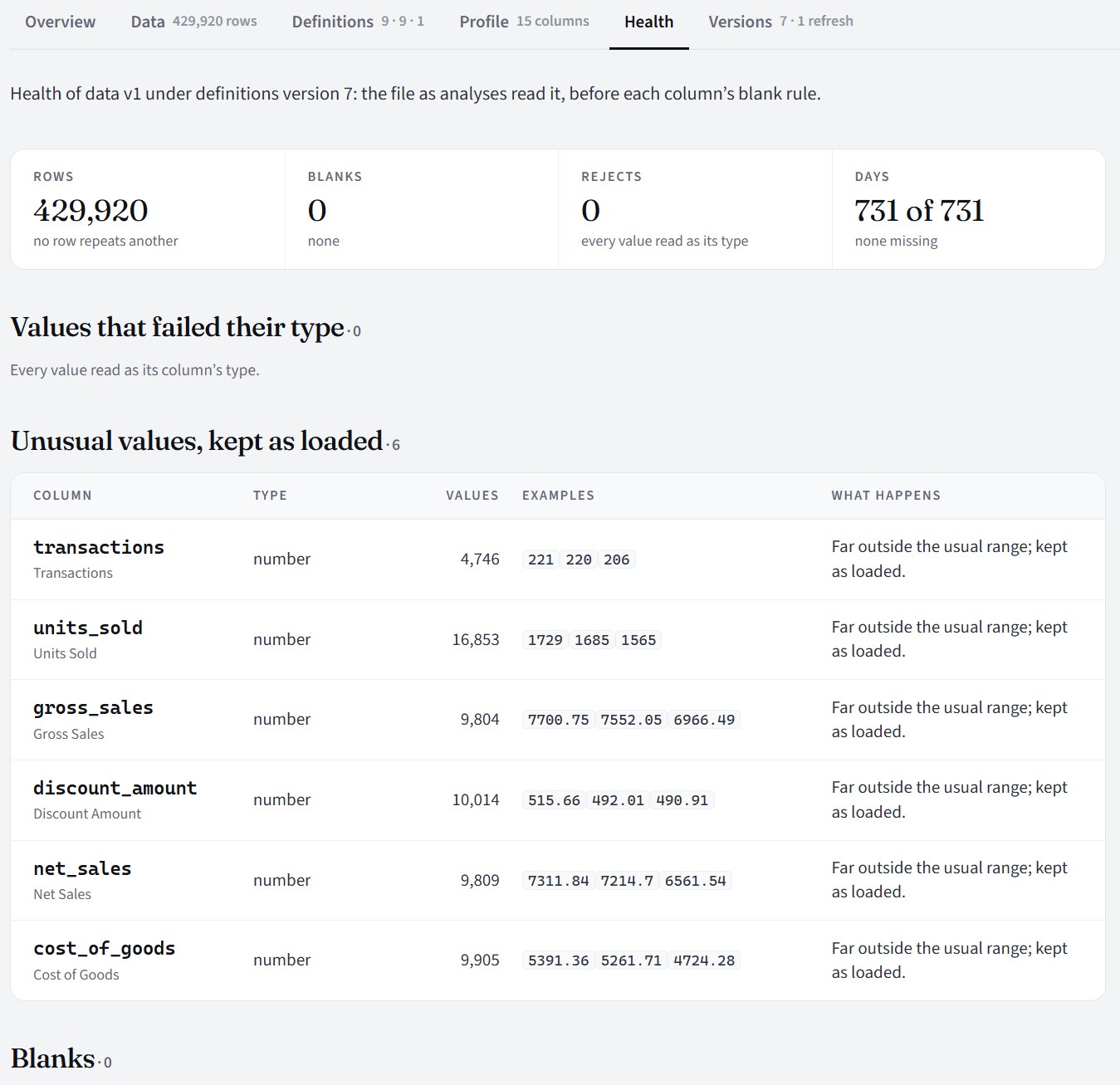
Ask in plain words
Write the request on New analysis, or let Ask, the built-in assistant, draft it. Nothing is created or run until you press Make the Brief.
Ask anything: how a page works, what your data holds, what to ask for. It answers from the platform's Help pages and, if you choose one, your dataset's definitions. It can talk a question through with you or draft a request, and it says plainly when something is outside what it knows or can do.
AI sees: your question and the Help pages; a dataset's definitions if you choose one. Never rows. Your question's words aren't stored.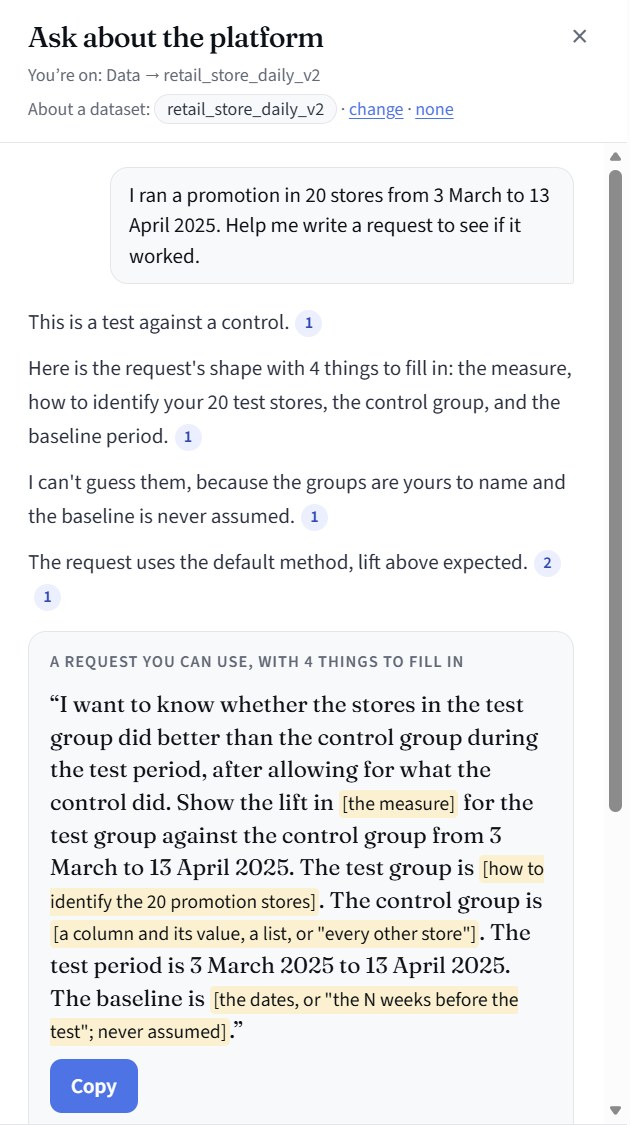
Give it the details it asks for and it drafts a full request, ready to run. "Use this request" opens a new analysis with it filled in; nothing runs yet.
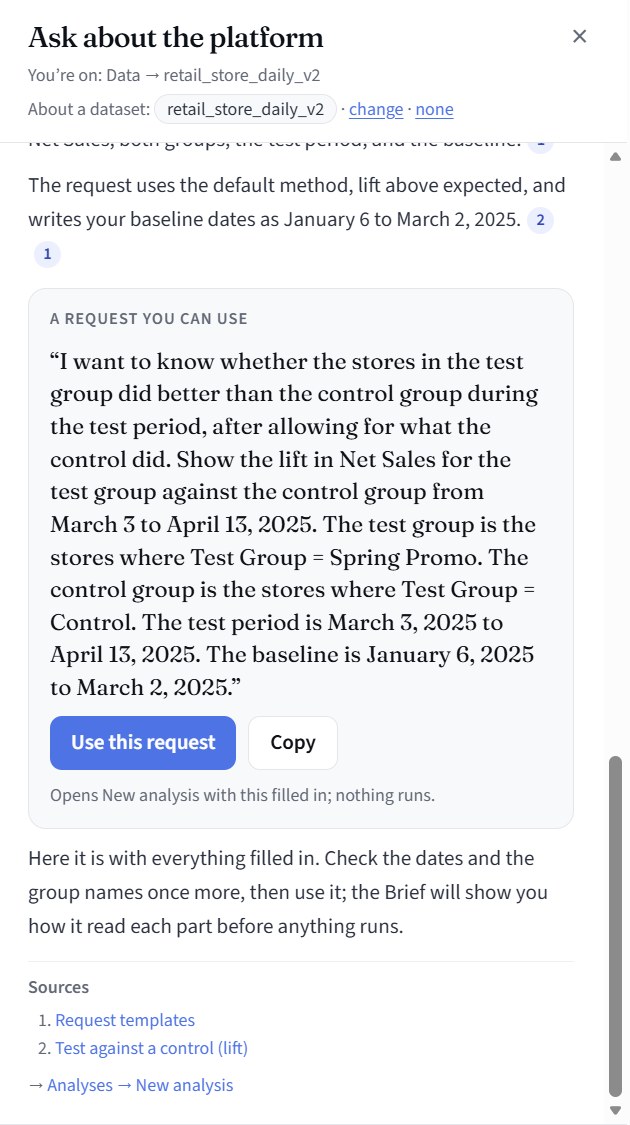
The request in your own words, the dataset and version it will read, and what happens next: the Brief, your check, the Plan.
Review the Brief
The Brief is made in about 30 seconds and sets out exactly what will be calculated. While it is made, every calculation in it is checked against the data, so it only offers what can be computed. You can edit anything, add an outcome in your own words, or remove one. Every version is kept.
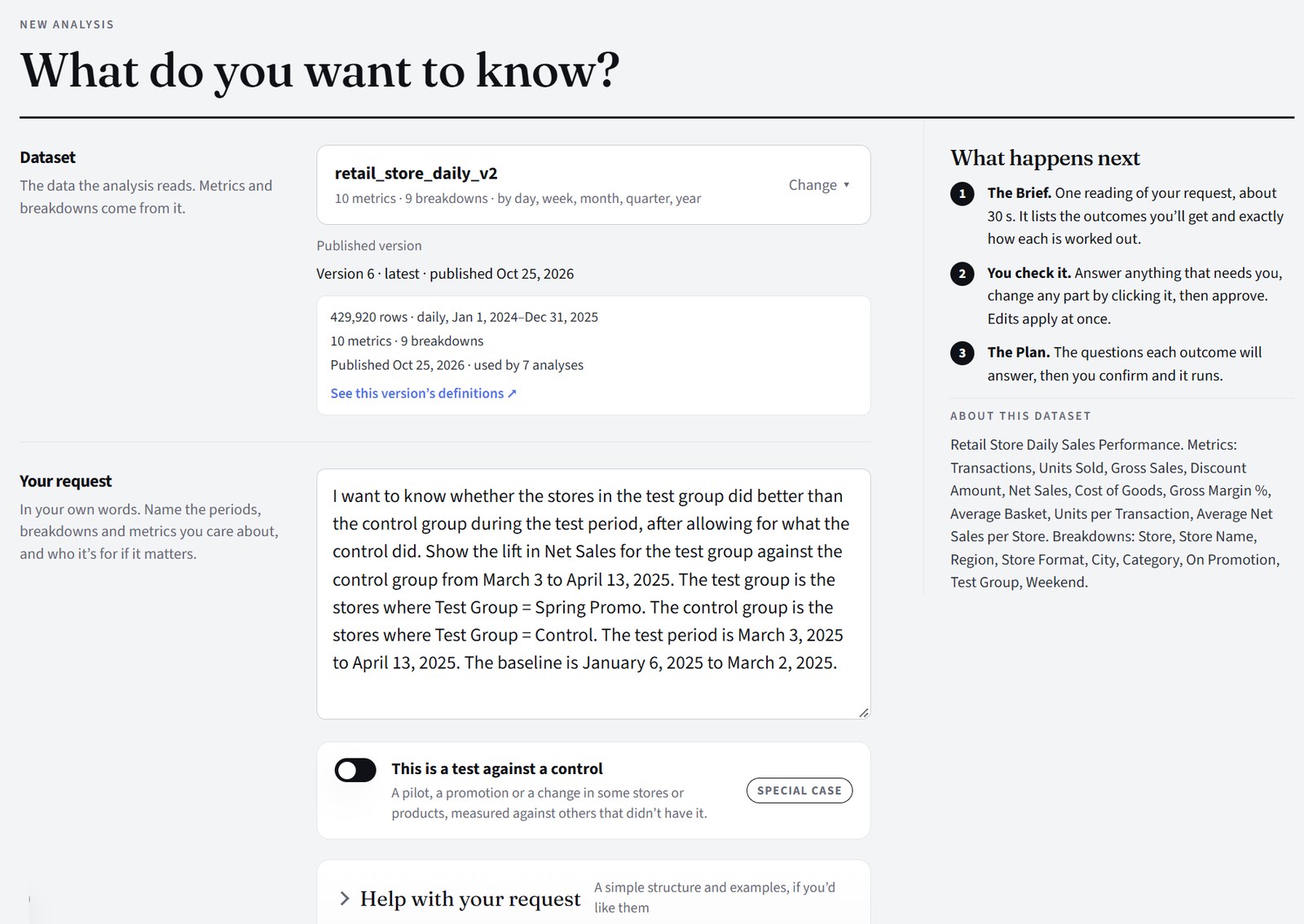
Evident's own summary of what you asked, the data's span, the audience and depth, and the calendar settings it will use, such as when weeks start.
AI sees: your request, the names of measures, breakdowns and categories, and the date range. Never rows or figures.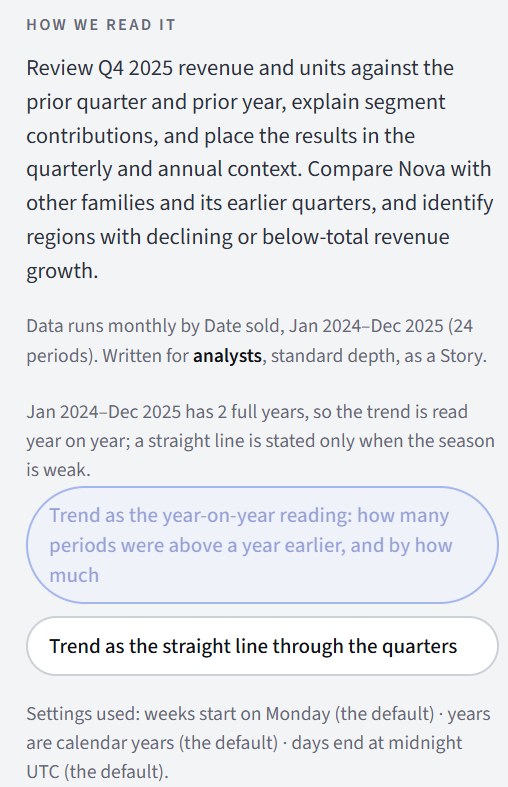
Your request as numbered outcomes, each with the calculations that answer it: the measure, the calculation, the split, the time frame, any filter and a plain "Computed as" sentence. Each calculation shows one of three statuses: Ready, Ready* (partial, with a note), or Can't be computed yet, with the reason. The rest of the analysis still runs.
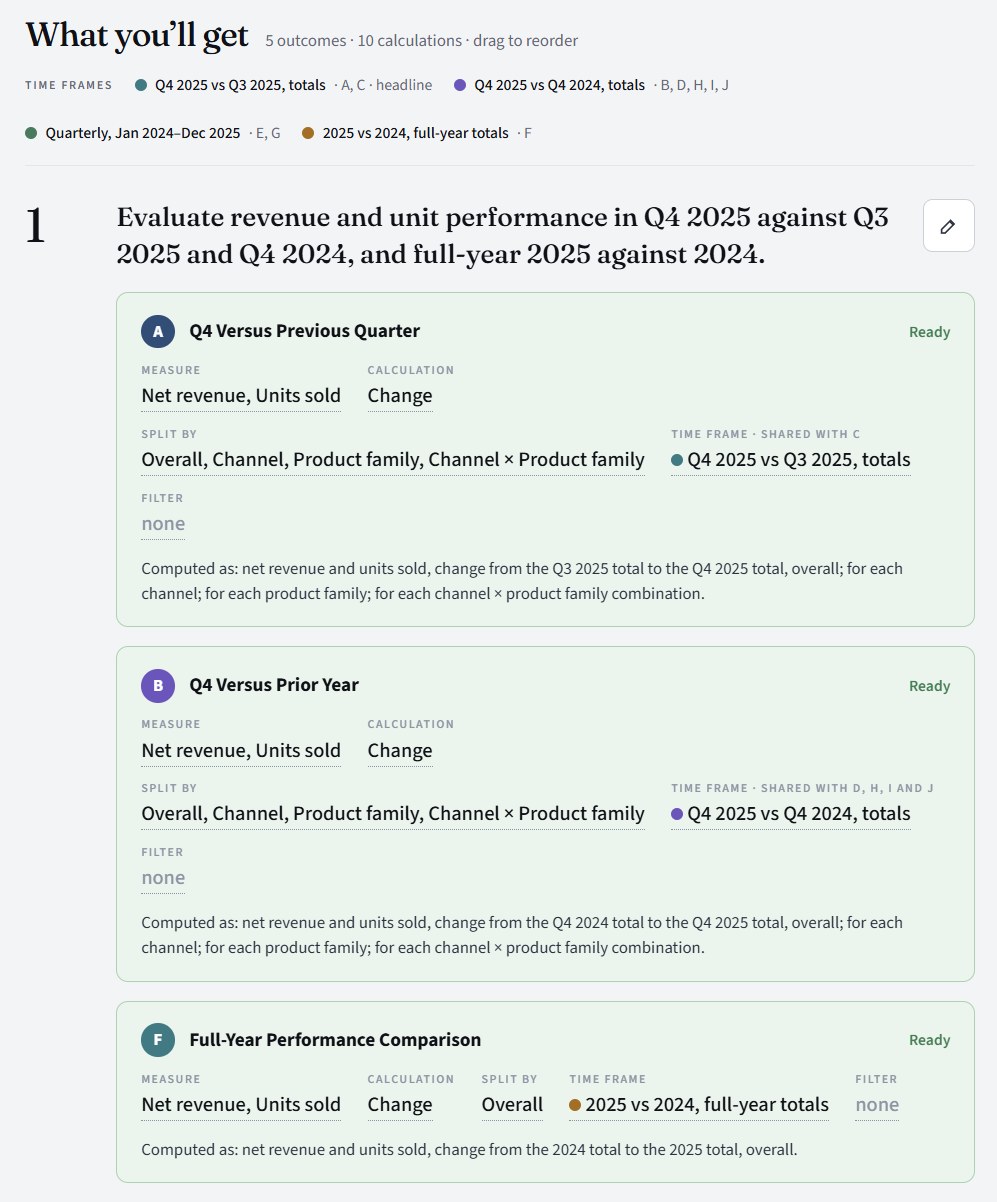
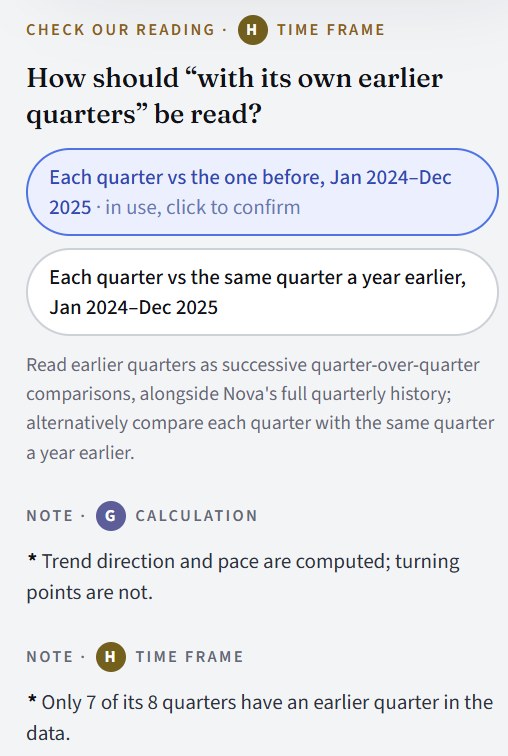
Where a request could be read more than one way, Evident sets out the readings it sees, says which one it has used, and asks you to confirm or choose another. Then Approve makes the Plan: the questions the analysis will answer, the units of work, and a time estimate from earlier runs on the same dataset. Confirm and run locks that Brief version and starts the run.
Run
Every calculation runs as code over your rows. Then each finding is tested against its facts before it can be written, and each result opens as soon as it is ready. The Story is written last.
The Run page shows five steps: Preparing, Computing the calculations, Checking the results, Writing the Story, and Finished.
AI sees: nothing while computing. Then the computed results per question, and the chosen findings, to write. Never rows.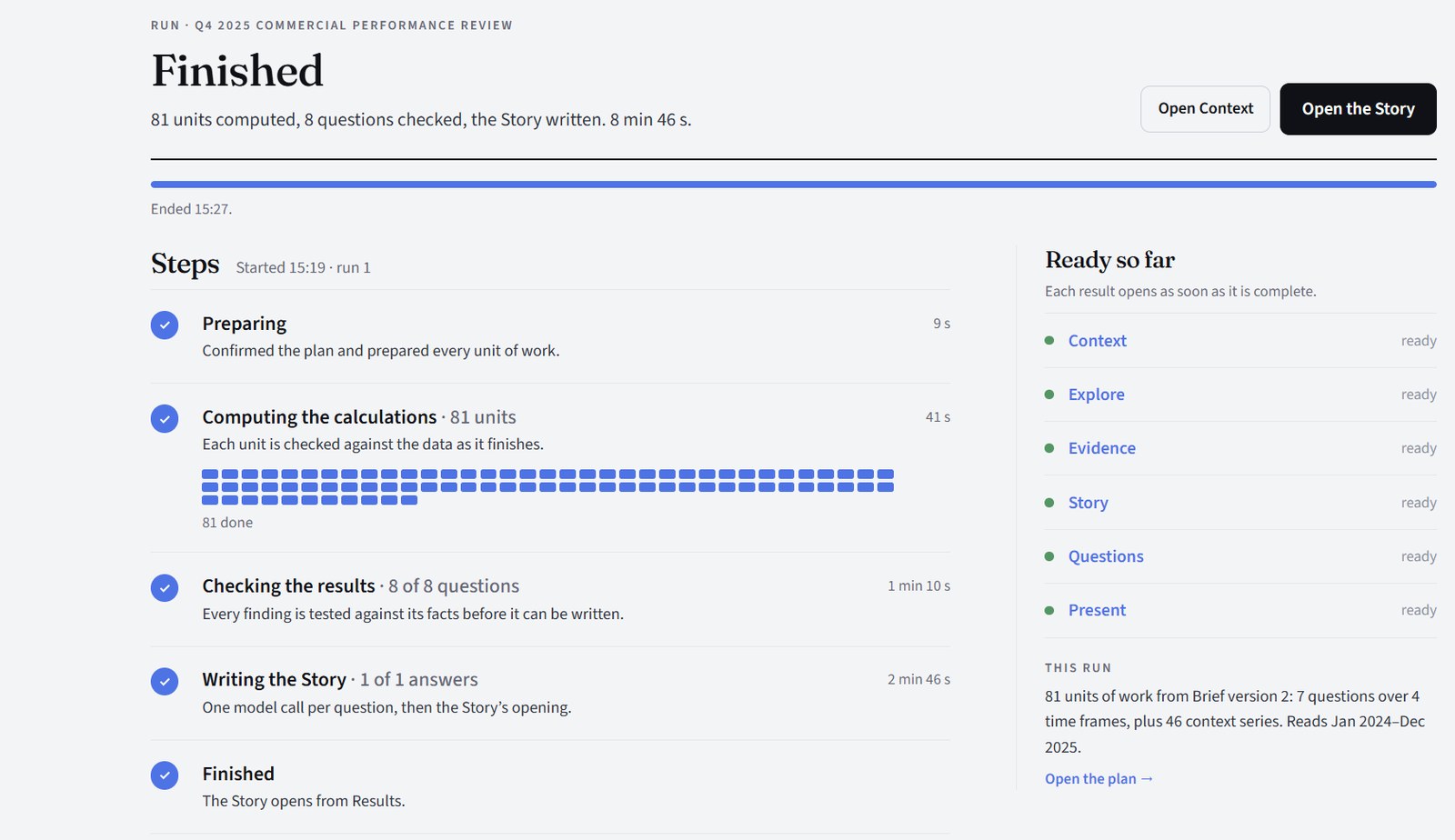
Read, check and present
The Story, the check behind every figure, and the deck, all from the same checked findings.
The Story, written from the checked findings to answer your request, chapter by chapter with its outline beside it. Its charts are drawn from the same findings, and what the data couldn't settle is listed under What is open. Questions shows each question the plan set out to answer, with its verdict, its answer and the evidence for and against. Context shows every checked chart on one page.
AI sees: nothing when you read or check.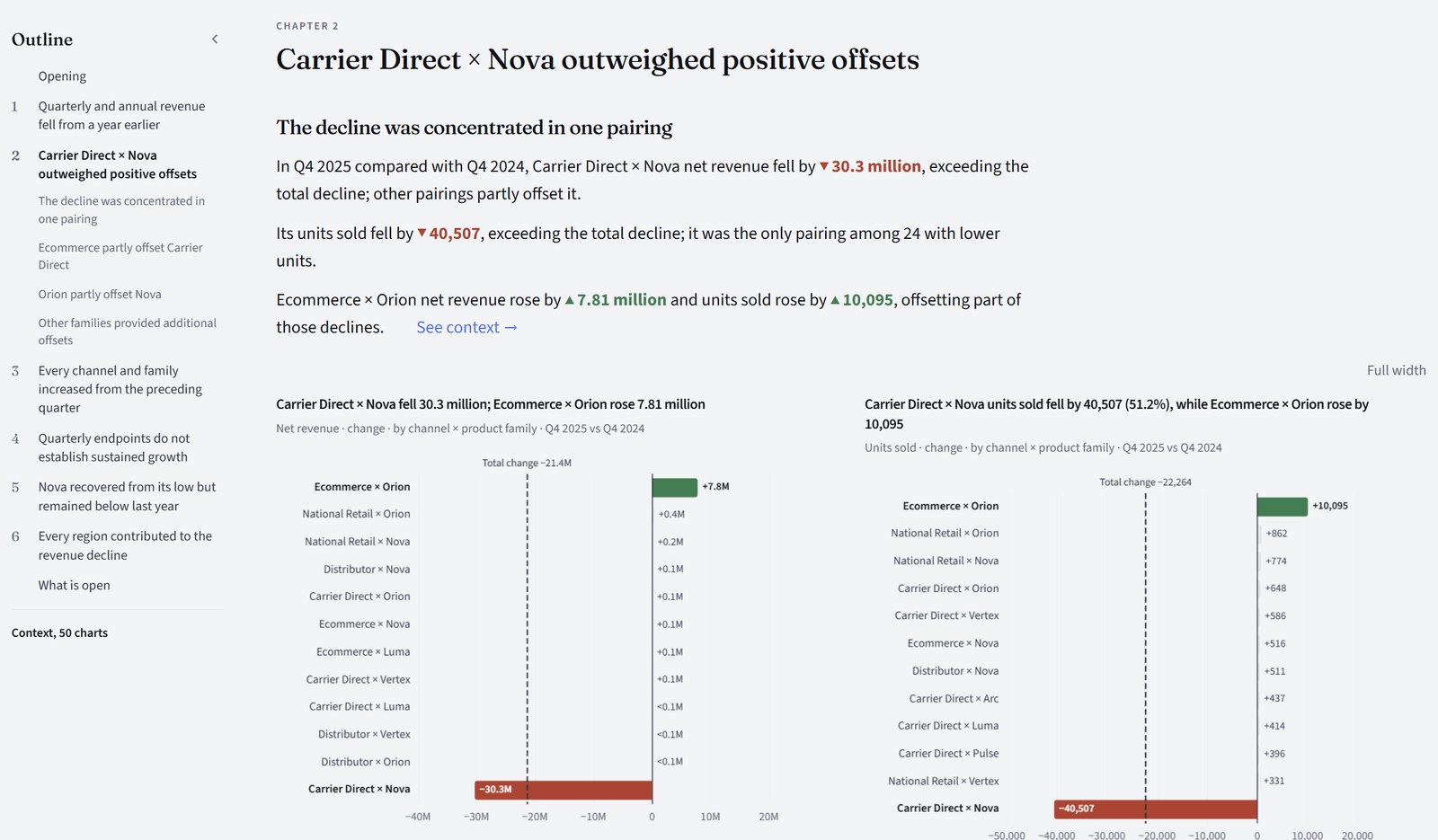
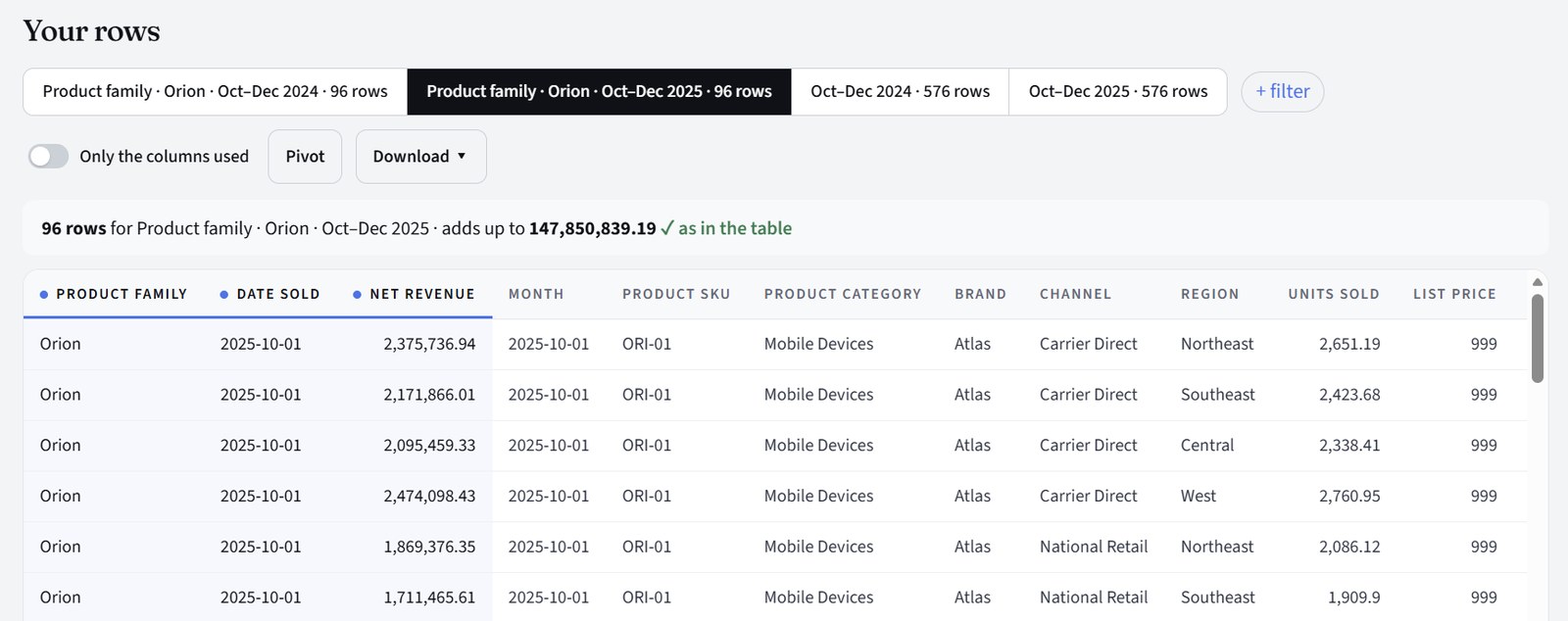
Press Check this on a sentence and this page opens: what you are checking, the finding behind it, and the arithmetic step by step, recomputed from your rows when the page loads, with each step's rounding stated. Below it, the rows themselves, to filter, pivot (up to four row fields) or download. For a lift, every step from the baseline and test-period totals to the figure on the page is shown and matched to the run.
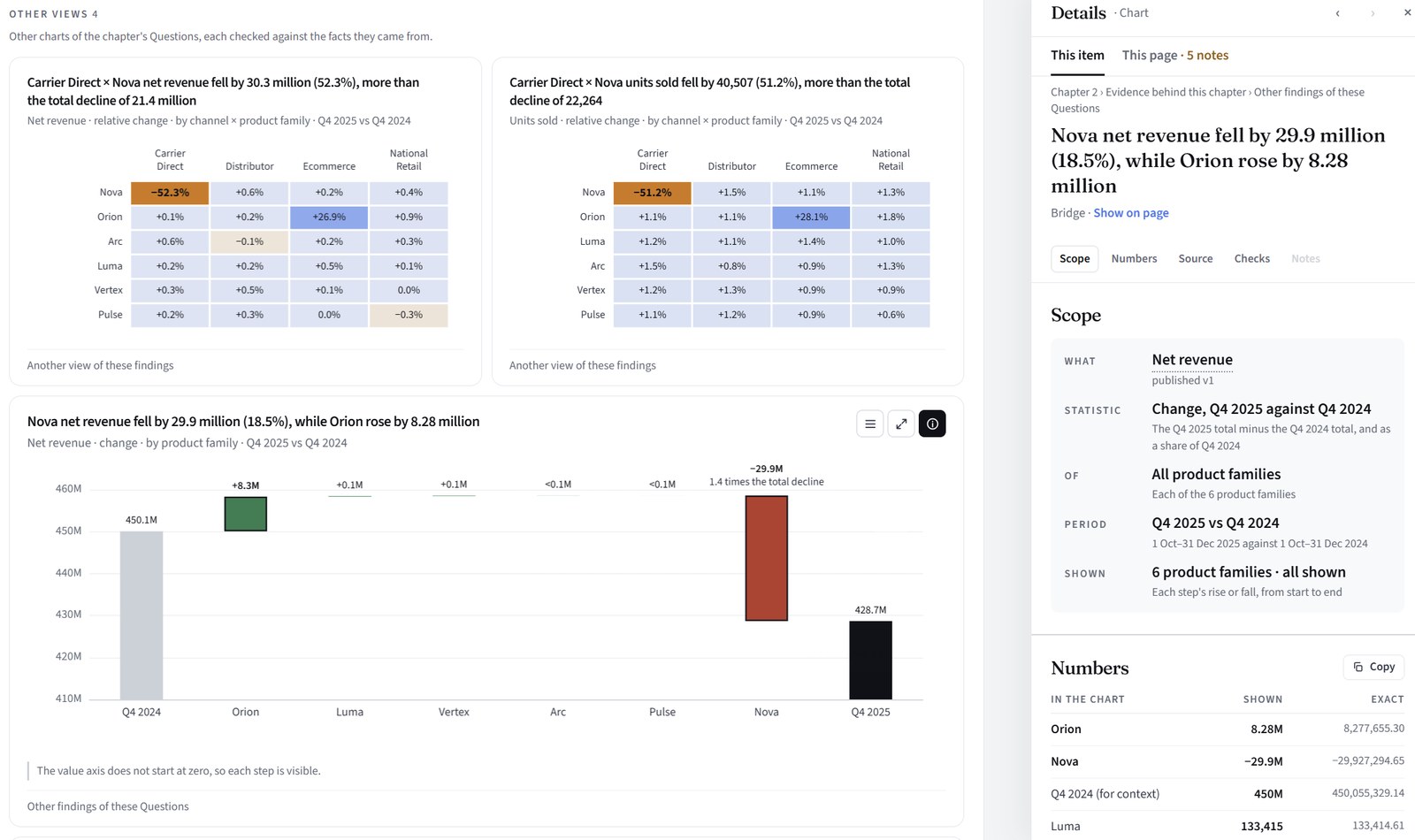
Every chart, set of key figures and section of text in the Story has an (i). It opens the Details panel: what is measured and over what, the exact values behind the rounded ones, the findings they came from, the checks they passed, and any caution that applies. The page rounds; the panel doesn't.
The Story becomes a deck slide by slide, or you ask for a shorter one for a particular audience. Pick one of eight themes, leave a slide out or describe a change to one, then Create the PowerPoint. Its charts stay editable. Editions are your own decks for an audience, with versions and sharing.
AI sees: nothing for the Story's own deck. When you ask for a new deck or a changed slide: the findings it uses, with personal names hidden.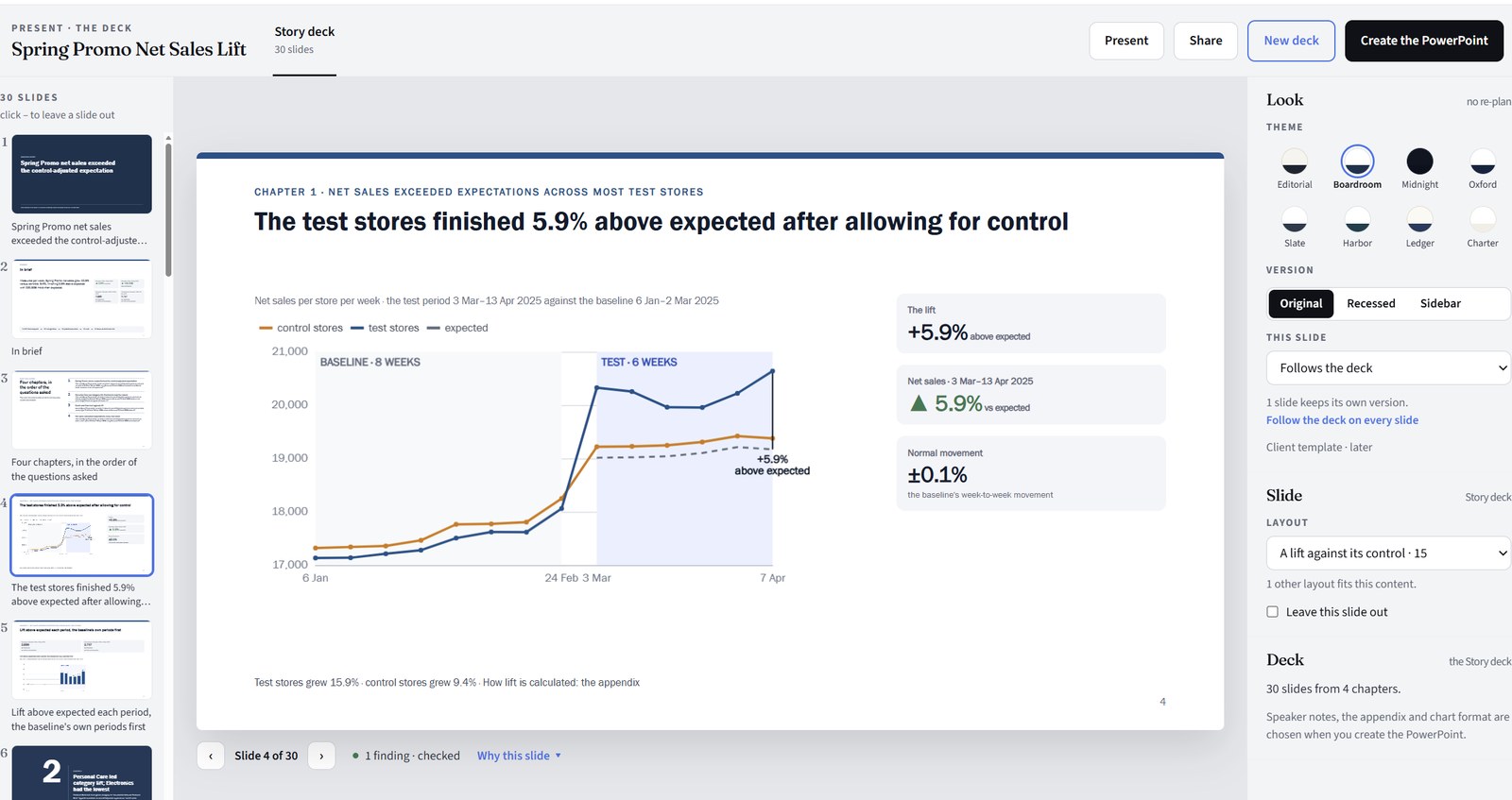
Did the promotion work, beyond what would have happened anyway?
Evident compares a test group with a control group that didn't get the change, across a baseline period and the test period. The members can be stores, products, customers or anything else your data counts. It reports the lift three ways: lift above expected (the default, as a percentage), the growth gap (in points) and the extra amount (in the measure's unit). Add a view of it by a breakdown, week by week, or for the top things.
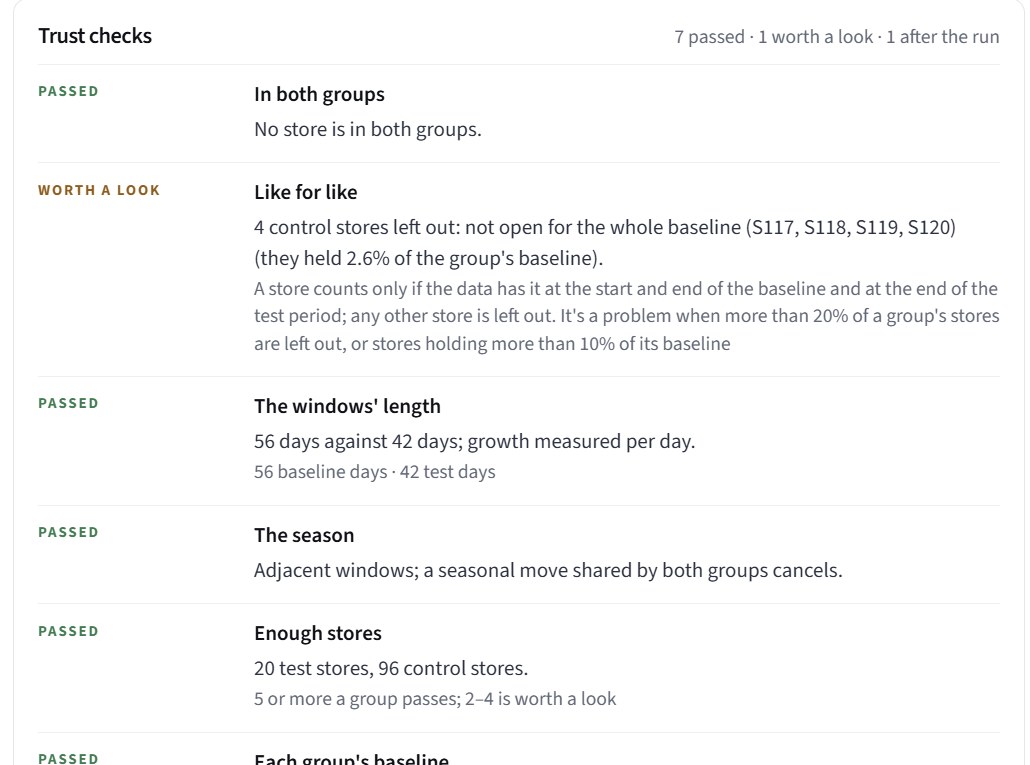
The comparison is checked, and each check says what it found. Before the run, the Brief checks the set-up: no member in both groups, every member present through both periods, periods that compare fairly, and enough members in each group. It lists each result before you approve and says which are worth a look. Two more need the numbers and run with the analysis: whether the groups moved together before the test, and whether one member makes the result.
